

Access control
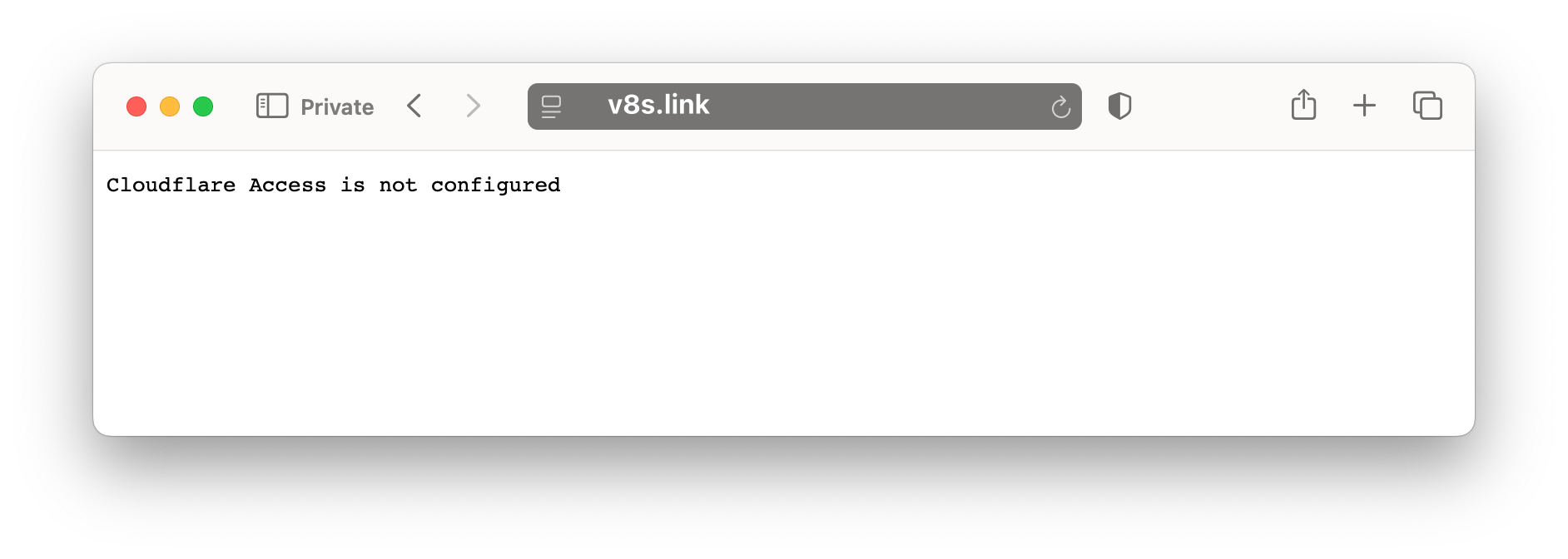
The vanityURLs Worker blocks access to the private dashboard and tests until Cloudflare Access is configured. Anyone who tries to open those pages sees the Cloudflare Access not-configured response1 shown below, so public redirects stay open while operational pages fail closed.
Use the vanityURLs/v8s-config Terraform repo as the reference configuration for the live v8s.link demo instance. It creates the Access application and policy for the protected paths below, then outputs the audience value that you store as CF_ACCESS_AUD. Use the manual steps on this page when reviewing an existing zone, troubleshooting, or migrating a setup that was originally configured in the Cloudflare dashboard.
flowchart LR
A["Private path"] --> B["Cloudflare Access
application"]
B --> C{"Allowed
identity?"}
C -->|"no"| D["Access login
or deny"]
C -->|"yes"| E["JWT assertion"]
E --> F["Worker validates
AUD and secret"]
F --> G{"JWT valid?"}
G -->|"yes"| H["Serve dashboard
or tests"]
G -->|"no"| I["Fail closed with
not-configured response"]
Find the Team domain
If this Cloudflare account has never used Zero Trust, Cloudflare shows a short first-time setup before the normal Access screens:
- On the Welcome to Cloudflare Zero Trust page, select Get started
- On Choose a plan, select Zero Trust Free unless you deliberately need a paid plan
- On Activate Zero Trust Free, review the order summary, authorize the plan terms, then select Activate
Cloudflare may ask for or confirm a payment method even when the plan is free; keep the plan on Zero Trust Free unless your organization requires otherwise. You only see this first-time setup once.
After activation, open Zero Trust > Settings, then:
Copy the Team domain.
The installer stores it in wrangler.toml during npm run setup:
[vars]
CF_ACCESS_TEAM_DOMAIN = "vanityurls.cloudflareaccess.com"
This value is not a secret, but it must match the Cloudflare account that owns the Access application.
Choose the identity provider
For phase 1, use one-time PIN unless you already have a provider ready. For provider strategy, read Choosing an Identity Provider.
| Option | Use when |
|---|---|
| GitHub | Maintainers already use GitHub and you want user or organization selectors |
| Maintainers already use Gmail or Google Workspace | |
| Corporate IdP | Your organization already manages workforce identities and offboarding |
If you enable multiple providers, users choose one on the Cloudflare Access login page. The policy succeeds when the selected provider returns an identity that matches the policy.
Create the Access application
In Cloudflare, open Zero Trust > Access Controls > Applications, then:
- Create an application
- Select Self-hosted and private
- Continue with Self-hosted and private
Use one Access application for the private vanityURLs operations. Public redirect paths should stay outside Access so visitors can follow short links without logging in.
Recommended settings:
| Setting | Value |
|---|---|
| Application type | Self-hosted |
| Application name | Your Worker name, such as v8s-link |
| Session duration | 24 hours |
| Identity providers | One-time PIN for phase 1, or the providers you configured |
| Browser rendering | Off |
Configure these destinations with your short domain:
Use your short domain
v8s.link with your short domain everywhere.| Subdomain | Domain | Path |
|---|---|---|
v8s.link | */_stats | |
v8s.link | */_stats/* | |
v8s.link | */_tests | |
v8s.link | */_tests/* |
Cloudflare Access supports wildcards in the path field. The */_stats entries cover localized dashboard paths such as /en/_stats/ and /fr/_stats/; the */_tests entries cover localized QA paths such as /en/_tests/ and /fr/_tests/, while leaving ordinary public short links outside Access.
Legacy path behavior Changed in 3.0.0
/_stats requests redirect to /en/_stats/, and legacy /_tests requests redirect to /en/_tests/; they do not need separate Access destinations.Create the Access policy
Start with a simple allow policy:
| Field | Value |
|---|---|
| Policy name | Allow maintainers |
| Action | Allow |
| Include selector | Emails |
| Include value | Your maintainer email addresses |
| Session duration | 24 hours |
Use the policy tester before saving. Test one allowed email address and one address that should be denied.
For a larger team, prefer a maintained group or IdP selector over a long list of individual email addresses.
Store the Access audience
After the application is created, open Additional settings and copy the Application Audience (AUD) Tag.
Store it as a Worker secret:
npx wrangler secret put CF_ACCESS_AUD --config wrangler.toml
Validate the protection
Before release:
- Use the Cloudflare policy tester to confirm an allowed identity succeeds
- Use the policy tester to confirm a denied identity fails
- Visit
/en/_stats/from a signed-out or private browser profile - Visit one other localized stats path, for example
/fr/_stats/ - Visit
/_teststo confirm the redirect, then/en/_tests/from a signed-out or private browser profile - Confirm Cloudflare Access appears before the dashboard or test page
- Sign in with an allowed identity and confirm the page loads
Run the local checks before pushing configuration changes:
npm run check
After deployment, repeat the signed-out browser test against the real short domain.
For your information: Cloudflare Access is not the only layer that limits operational file access. For the complete guard table, read Runtime security. For ongoing review, read Operating Cloudflare Access for a short-link domain.
Keep controlled access on localized stats paths such as /en/_stats/ and /fr/_stats/, localized test paths such as /en/_tests/, the _headers runtime-file entries, and the Worker runtime-file guard enabled unless you have a deliberate public-disclosure reason. This is a design note, not a separate setup activity.
The Worker validates the
Cf-Access-Jwt-Assertionheader on those paths; refer to Store the Access audience below. If the secret is missing or invalid, the protected path fails closed. ↩︎